It is quite common for those who work with equations and use screen reader technologies to get an error saying the equation does not read correctly. As creatures of habit, we are used to working with keyboard keys as mathematical components. However, there is a difference in using the key on your keyboard versus using a Unicode version of the mathematical component.
For example, the - (dash) is a heavily used key with many purposes, such as a ˗ (minus) symbol in equations. Assistive technologies, especially screen readers, will identify this symbol to the end user as either dash or minus. It makes a difference what you “type” as to which description the end user will receive. This is determined by the Unicode designation assigned to the character.
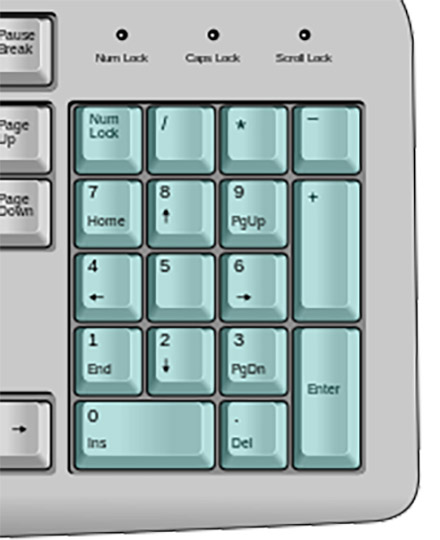
However, this is very limited as you only have 5 basic operators available to you for simple mathematical modifiers that is equivalent to the Unicode designation. Instead of using the number row of keys along the top of a standard keyboard, use the Numeric Keypad (Figure 1). When Num Lock (Clear on a mac keyboard) is activated, the numeric keyboard becomes active as a calculator. Instructions are sent to the computer to use the correct mathematical operator based on the user’s input from the numeric keypad. However, this is very limited with only have five basic operators available to you: ˗ (minus), + (plus), × (multiplication), ÷ (division represented as a / forward slash), and = (equals).
Using Unicode Mapping
Unicode is an information technology standard used in the programming and handling of text expressed in writing systems and software. This technology allows programmers with a base character set to use when programming technologies for end user experiences, especially in a different language. It is a platform that helps unify language and its use in computer software.
If you are on a PC, the Unicode Character Map is called Character Map. To access this reference, type “Character Map” in the Search field on your taskbar. The Character Map application should be listed at the top of the results. Click on the application and the Character Map window will pop-up (Figure 2).
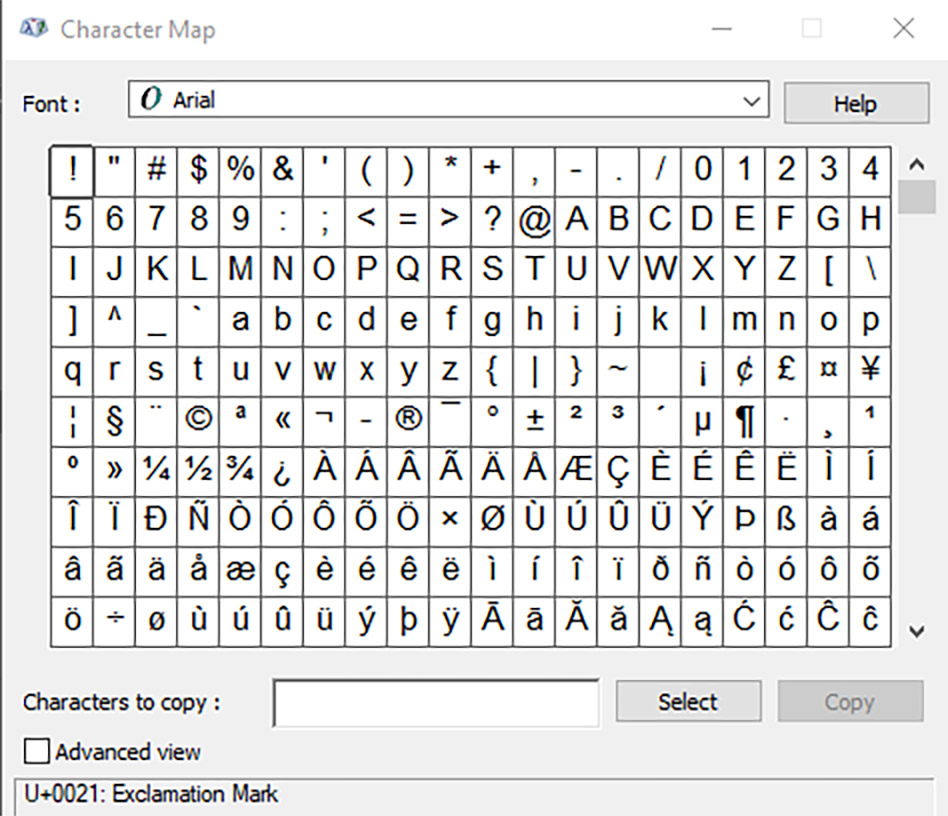
You can search for any character within any font that is installed on your computer. Each character you select will give you the Unicode number (U+003C) plus the character name (Less-Than Sign) in both the bottom of the window and in a mouse hover. Not all fonts will have the same character sets. The sets will differ across languages, symbols, and special characters designed as part of the font. Pro tip: create a shortcut to the character map so you don’t have to search for it again.
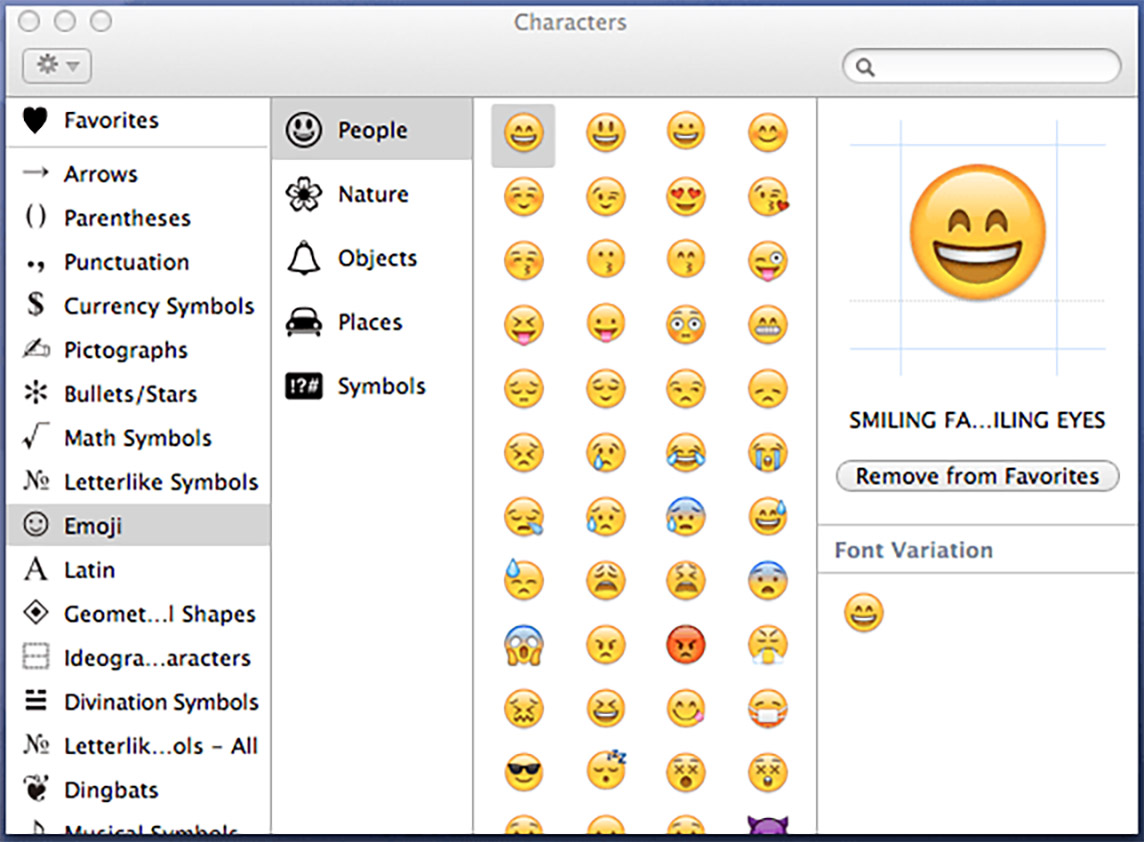
For Mac users, there’s a semi-hidden way to access special symbol sets in Unicode and a more obscure method of searching for specific symbols across all macOS-included Unicode characters. This is using the Character Viewer (Figure 3). The easiest way to access the viewer is to go to the top menu bar and choose Edit → Special Characters (at the very bottom). This way you can access the Character Viewer at least in a lot of programs including Safari.
In Microsoft Word, insert Unicode characters by typing the 4- or 5-digit number followed by Alt + the x key.
For example, an em dash (—) is typed as 2014 Alt x
Creating Equations/Formulas
Most content creators have two options available to them when working with equations and formulas, and they are based on the complexity of the equation. Most popular software applications can create simple equations and be read properly by assistive technologies as long as they are created correctly. This means making sure you are using a Unicode character that represents the mathematical symbol you want and not just a character on your keyboard that visually represents that symbol.
Some software programs, such as Excel, provide the user with more mathematical operators to create equations that are complicated. For this resource, Microsoft Word©, Adobe Acrobat Pro©, NVDA, and MathCast will be used to address the two most common situations in making equations accessible.
Word to PDF Equations
In Word, you have the ability to insert ready-made equations or create your own using the Equation Editor located in the Symbols section of the Insert tab. This feature helps you work with equations utilizing Unicode-mapped operators, which you turn on in the Conversions section of the Equation Editor.
If creating equations without using the Equation Editor, use the Unicode equivalent of the mathematical symbols (not the symbol on your keyboard as a dash is different than a minus symbol) by inserting operators using the Character Map. In either case, once your equation is written, convert your Word document to PDF and the Unicode characters should read and be recognized correctly.
So how simple or complicated must the equation be to read correctly by assistive technologies? Even though Word enables us to create a multitude of equations, the equations still fall short of the goal of being read properly by assistive technologies. For example, using NVDA screen reader:
- 2+6=8 reads as 2 plus 6 equals 8, BUT
- (2+6)2 reads as 2 plus 6 2, but should read as parenthesis 2 plus 6 parenthesis squared
And the above examples were created without using the Equation Editor but with the correct Unicode characters. Does using the Equation Editor make a difference? No. It is actually more problematic as the equation is created within its own container, which is read by screen readers, and very few of the alphanumeric characters and mathematical operators are readable. So, until the software fully meets assistive technologies, very basic and simple equations are the only accessible equations that can be made in Word without a lot of problems.
inDesign to PDF equations
The process listed above is the same for working with formulas in inDesign, with one caveat. You need to create a style called Formula to format your equations. Since inDesign does a better job with using glyphs, which are assigned Unicode characters, we are able to create a bit higher than just very simple equations and easily format our equations using our style.
Once converted to PDF, you edit the role mapping settings for the mapped styles and DELETE the reference for /Formula /P (which maps the style Formula to a P tag) and all instances of this style in the tags tree will revert to the tag. This process does not work well with Word-converted PDF documents.
Using MathML for the Web
While turning an equation into an image with alt text is a reliable option for documents, web content has a better native option: MathML (Mathematical Markup Language). MathML is a W3C standard for describing mathematical notation, and it carries both the visual structure and the semantic meaning of an equation directly in the markup. This means assistive technologies can read the equation in a meaningful, navigable way — rather than relying on a single block of alt text that a user cannot explore piece by piece.
Why MathML is preferred for the web
- It’s machine-readable math, not a picture of math. Screen readers can interpret MathML and speak equations correctly, including structure like fractions, exponents, roots, and grouping.
- It scales and reflows. Unlike an image, MathML text resizes cleanly when users zoom or change font size, supporting low-vision users and reflow requirements.
- It supports navigation. Some assistive technologies allow users to step through an equation term by term, which a flat image with alt text cannot provide.
- It reduces maintenance. You edit the markup directly rather than regenerating and re-alt-texting an image every time an equation changes.
Standard and browser support
MathML 3 has been a World Wide Web Consortium (W3C) recommendation since 2014. More recently, the W3C published MathML Core — a precisely specified subset designed for consistent rendering in browsers — as a candidate recommendation in June 2025, with further work on a full MathML 4 in progress.
Native browser support has improved substantially. All three major browser engines now support MathML natively: Firefox (Gecko), Safari (WebKit), and Chromium-based browsers such as Chrome and Edge (Blink) added native MathML Core support beginning with Chrome 109.
Support is strong but not perfectly uniform across every feature and every assistive technology. For that reason, many teams still use a rendering library such as MathJax, which accepts MathML (or LaTeX) input and renders it consistently across environments while preserving an accessible representation for assistive technologies. Whichever approach you choose, test your equations with the browsers and screen readers your audience uses.
A note on screen reader support: Screen reader handling of MathML varies by product and platform. VoiceOver reads MathML well in Safari; JAWS and NVDA also support MathML, though older NVDA versions historically required an add-on (MathPlayer) for full support. Because behavior differs across assistive technologies, it is recommended that you validate real equations with at least one screen reader before publishing.
Two Ways to Author MathML
- Presentation MathML describes how the equation looks (its layout). This is the most common form and is generally sufficient for accessibility.
- Content MathML describes what the equation means (its mathematical semantics). This is more verbose but can be useful for advanced applications.
A Simple Equation
The equation (2 + 6)² = 64 can be expressed in Presentation MathML as:
<math xmlns="http://www.w3.org/1998/Math/MathML">
        <msup>
            <mrow>
            <mo>(</mo>
            <mn>2</mn>
            <mo>+</mo>
            <mn>6</mn>
            <mo>)</mo>
            </mrow>
            <mn>2</mn>
        </msup>
        <mo>=</mo>
        <mn>64</mn>
</math>
Notice how the <msup> element explicitly ties the exponent (2) to the grouped expression (2 + 6). This is exactly the structure that was lost in the earlier Word to PDF Equations example mentioned above, where (2+6)² read incorrectly as “2 plus 6 2.” With MathML, a screen reader can convey “open parenthesis 2 plus 6 close parenthesis squared equals 64.”
The same example can be expressed in Content MathML as:
<math xmlns="http://www.w3.org/1998/Math/MathML">
    <apply>
        <eq/>
        <apply>
        <power/>
        <apply>
            <plus/>
            <cn>2</cn>
            <cn>6</cn>
        </apply>
        <cn>2</cn>
        </apply>
        <cn>64</cn>
    </apply>
</math>
Notice what changes. There are no parentheses and no visual layout. Instead:
- The outer
<apply><eq/>says the two sides are equal. <apply><power/>raises a base to an exponent. Its first argument is the whole sum (2 + 6) and its second argument is 2.<apply><plus/>groups 2 and 6 together as one quantity.- The grouping that parentheses provide visually is now expressed by the nesting of the tree itself so there is no ambiguity about what gets squared.
An Advanced Example: The Quadratic Formula
The equation: x = ( −b ± √(b² − 4ac) ) / 2a can be expressed in Presentation MathML as:
<math xmlns="http://www.w3.org/1998/Math/MathML">
<mi>x</mi>
<mo>=</mo>
<mfrac>
<mrow>
<mo>−</mo>
<mi>b</mi>
<mo>±</mo>
<msqrt>
<mrow>
<msup>
<mi>b</mi>
<mn>2</mn>
</msup>
<mo>−</mo>
<mn>4</mn>
<mi>a</mi>
<mi>c</mi>
</mrow>
</msqrt>
</mrow>
<mrow>
<mn>2</mn>
<mi>a</mi>
</mrow>
</mfrac>
</math>The same quadratic formula can be expressed in Content MathML as:
<math xmlns="http://www.w3.org/1998/Math/MathML">
  <apply>
    <eq/>
    <ci>x</ci>
    <apply>
      <divide/>
      <apply>
        <plusminus/>
        <apply>
          <minus/>
          <ci>b</ci>
        </apply>
        <apply>
          <root/>
          <apply>
            <minus/>
            <apply>
              <power/>
              <ci>b</ci>
              <cn>2</cn>
            </apply>
            <apply>
              <times/>
              <cn>4</cn>
              <ci>a</ci>
              <ci>c</ci>
            </apply>
          </apply>
        </apply>
      </apply>
      <apply>
        <times/>
        <cn>2</cn>
        <ci>a</ci>
      </apply>
    </apply>
  </apply>
</math>
How the meaning is encoded in Content MathML:
<apply><divide/>is the overall fraction; its first argument is the numerator, its second is the denominator 2a.<apply><plusminus/>expresses the ± relationship between −b and the square root term.<apply><minus/>with a single argument represents unary negation (i.e., −b), which is semantically distinct from subtraction.<apply><root/>is the square root; the inner<apply><minus/>is subtraction (b² − 4ac), which uses<minus/>with two arguments this time.<apply><power/>gives b², and<apply><times/>multiplies 4 · a · c.
<math> element is parsed as MathML automatically, so the xmlns attribute is technically optional in an HTML document. However, it's still good practice to include it; it's required for standalone XML/XHTML contexts, and it makes the markup portable and unambiguous.Styling MathML
You can style MathML to match your page design while keeping it accessible. A few guidelines:
- Do not encode meaning in color or style alone. Color, bold, or size should never be the only way a relationship or distinction is communicated.
- Use the semantic element over visual substitutes. For example, use
<msup>for an exponent rather than styling a raised, smaller number. The visual result may look similar, but only the semantic element reads correctly. - Use CSS sparingly and test it. You can apply properties such as color, font-size, and background-color to
<math>elements and their children. Always test the styled result with a screen reader to confirm the meaning is still conveyed. - Maintain sufficient contrast. Equations must meet the same color-contrast requirements as body text.
- Allow equations to resize. Avoid fixed pixel sizing that prevents equations from scaling with the surrounding text when a user zooms.
When to Still Use an Image
MathML is the recommended approach for web content. Continue to use the image-with-alt-text approach (for example, via MathCast) when:
- You are producing a document or PDF rather than web content, or
- Your publishing platform does not support MathML and you cannot use a rendering library, or
- The equation is highly complex and reliable rendering cannot be confirmed through testing.
Above the Basic Equation
Equations must meet the same expectations as text when it comes to Section 508 requirements. This includes equations used as examples, formulas with variables, scientific scenarios, and especially equations that do not read correctly with assistive technologies. So how can this be accomplished?
You create an image of the equation. Turning the equation into an image is the best option available today when implementing 508 requirements. It does take some extra steps when converting an equation into an image and ensuring that image conveys the same information as a text-based equation. And, the alt text needs to include the linearized form of the equation.
There are free resources that can help you create equation images, convert an equation image to text, and even work with handwritten equations and theories. Plus, they provide you with a critical piece you will need - a linearized text-based version of the equation (your alt text). For this resource, MathCast is used to demonstrate the graphic process for equations.
MathCast
MathCast is an open source equation editor. You input your equation using the Rapid Mathline interface, which then renders a graphical representation of your equation. MathCast supports output image files (BMP, PNG, and EMF) that you can incorporate into documents, presentations and web pages. The user-friendly graphical interface is designed for simplicity while still providing powerful equation creation and editing (Figure 4). It supports the W3C MathML 2.0 and W3C XHTML 1.1.
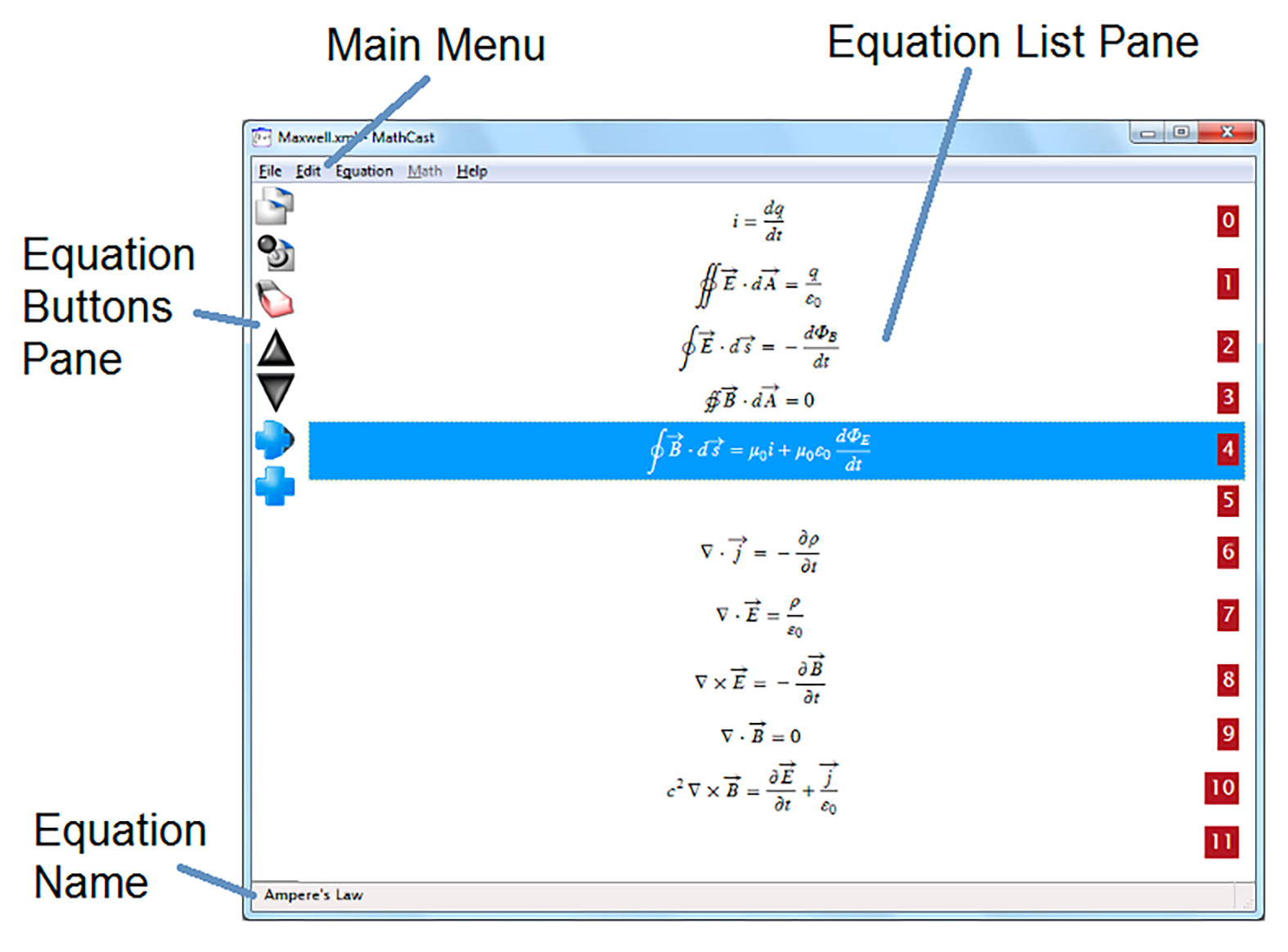
All creation and editing of equations is done using the Rapid Mathline. When you select Equation → New from the top menu tabs, an input field will appear at the bottom of the window. This is where you will enter your equation along with access to an extensive set of mathematical operators, symbols and functions (Figure 5).

All the basic operations will take place in this field. Even though the current view of the equation is linearized, the strength of this program happens when the line of text is converted to a mathematical representation. Once you feel your equation is ready, select the OK button and the text will be rendered in the main part of the screen as a visual representation (Figure 6). Just double-click your equation to take you back to edit mode and the Rapid Mathline.
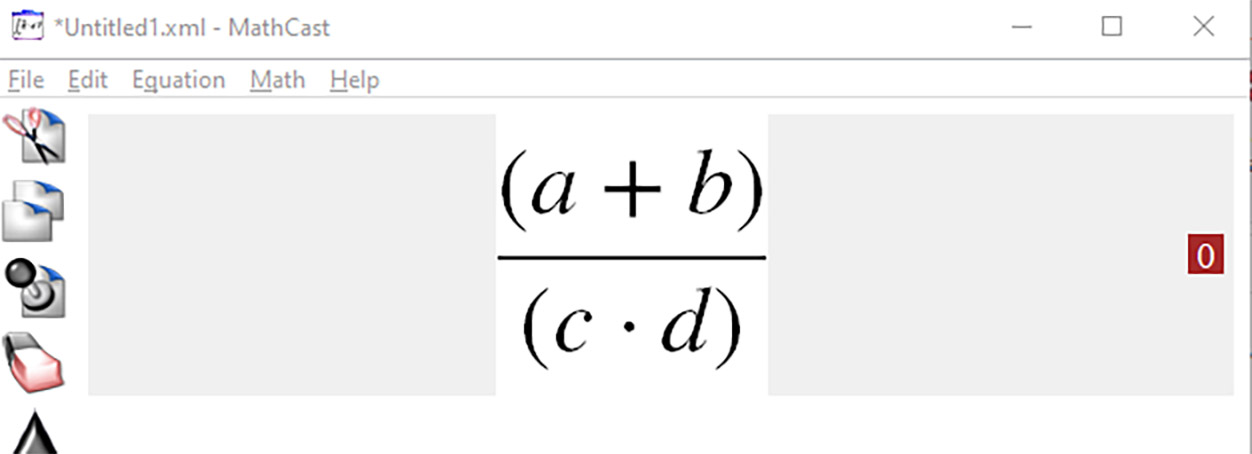
You can save your image when you are finished. Your alternative (alt) text for the image will be the linearized text-based equivalency of the graphic in the Rapid Mathline field. The symbols used to create the equation will directly translate to the correct spoken text. This provides the end user the same information as the visual representation of the equation. Just copy and paste into any software in which you are using the image.
Some things to consider for this equation editor is that, if you don’t have much math background, you can rely on the help guide that provides great examples on how to write out equations. You cannot change the font that is used in the equation image. You have some control over the size and color of the equation. But, at the writing of this resource, this program is only available for the PC. Still, MathCast can be a great tool for creating equation images and provides you with the equation part of your alt text.
Final Thoughts
The three main points to take away from this resource are:
- Use the correct Unicode character for the mathematical operator.
- You need a linearized form of the equation as part of your alt text when using equation graphics.
- For web content, use MathML (optionally rendered through a library such as MathJax or KaTeX) rather than an image, so that equations are readable, navigable, and resizable by assistive technologies.
Equations, formulas, and theories are not that difficult to make accessible. You need to use the right tools and the correct Unicode character to make these types of visuals read properly. There are other equation editors on the market you may be interested in; therefore, do the research to find one you like and are comfortable with when understanding how equations are created and read by assistive technologies.
Resources
The following resources were used in the creation of this resource: